Planning a road trip can be fun and exciting. Google Maps makes it easier than ever. Let’s learn how to use Google Maps to plan the best road trip.
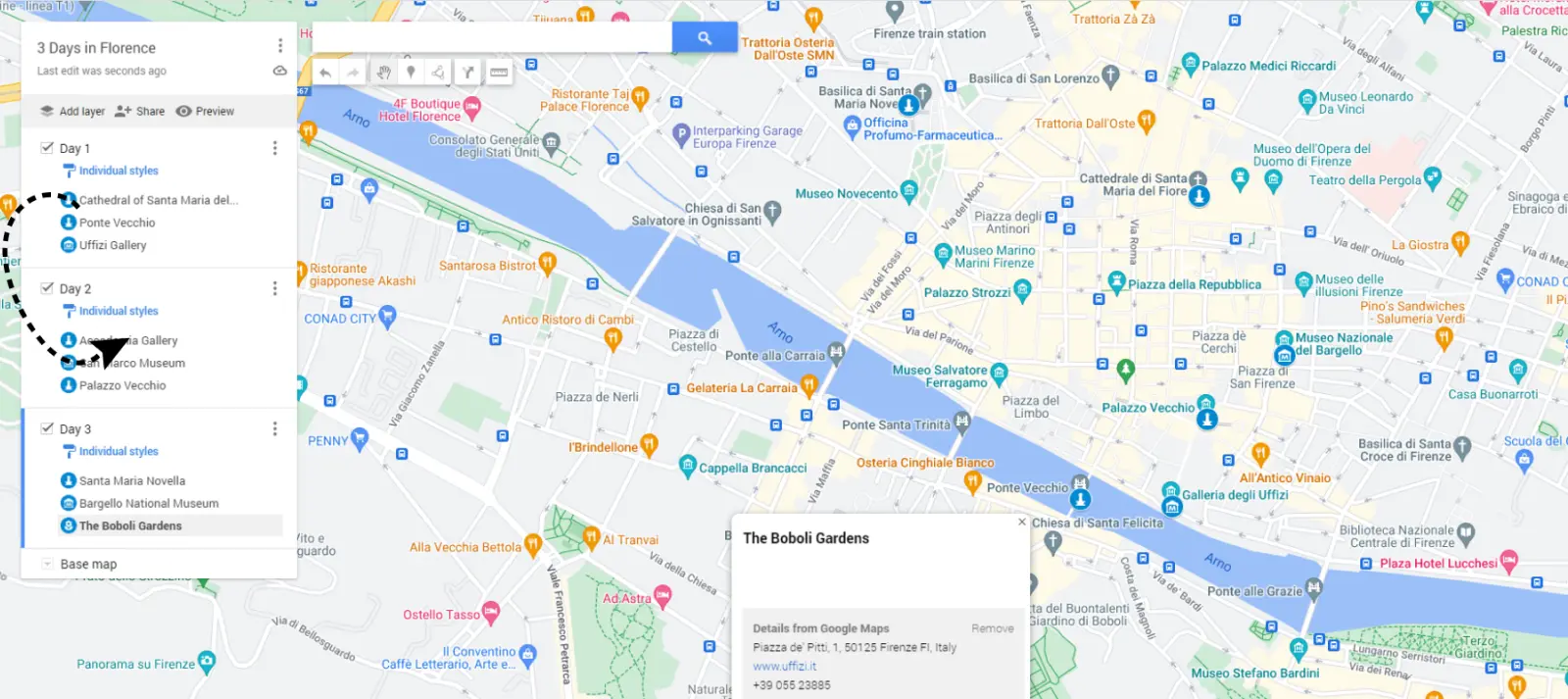
Credit: www.routific.com
Why Use Google Maps for Your Road Trip?
Google Maps is a powerful tool. It helps you find the best routes, places to visit, and more.
Benefits Of Using Google Maps:
- Real-time traffic updates
- Turn-by-turn directions
- Access to reviews and photos of places
- Ability to save and share your route
Step-by-Step Guide to Planning Your Road Trip
Follow these steps to plan your perfect road trip with Google Maps.
Step 1: Choose Your Destination
Decide where you want to go. Think about the places you want to visit. Make a list of your top destinations.
Step 2: Open Google Maps
Go to Google Maps. You can use it on your computer or phone.
Step 3: Enter Your Starting Point And Destination
Type in your starting point. Then, enter your destination. Google Maps will show you the best route.
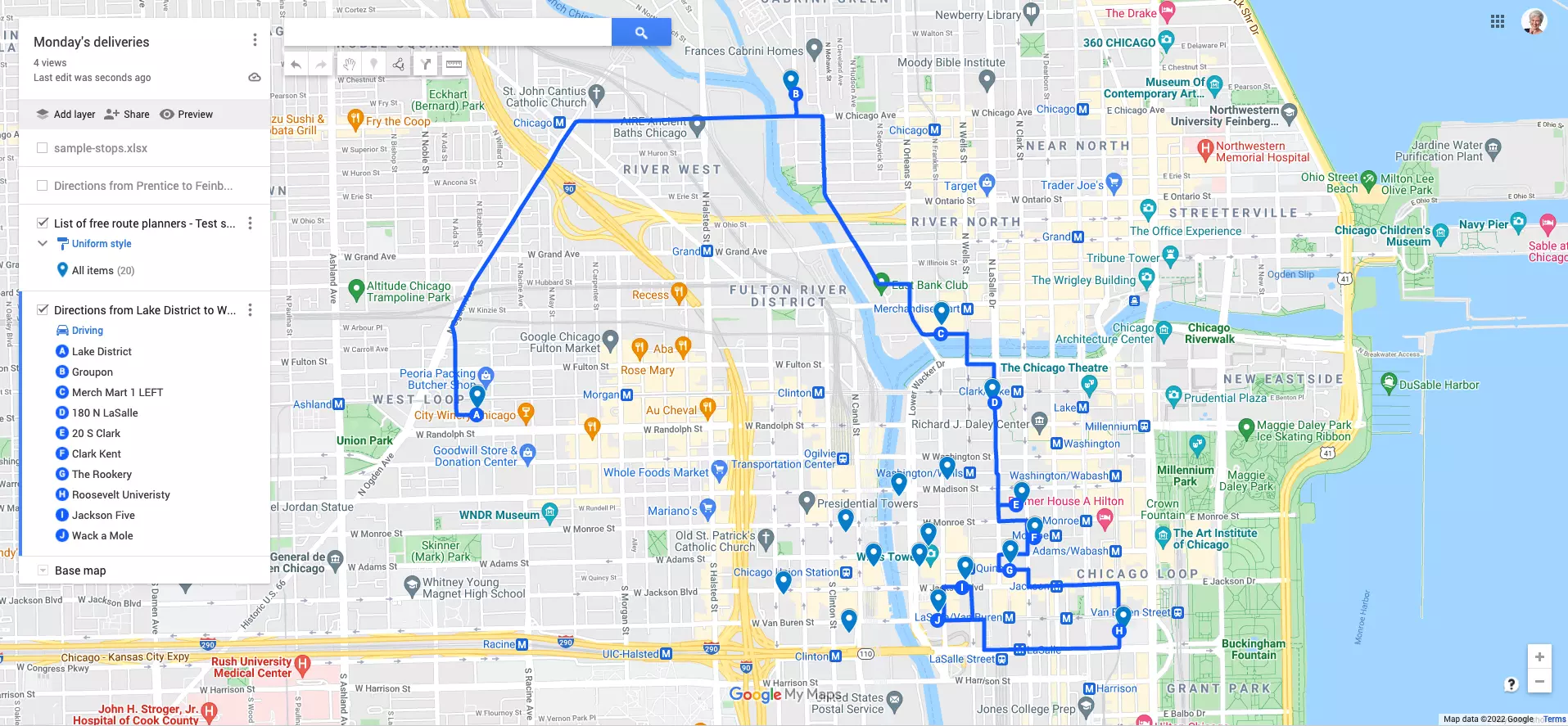
Step 4: Add Stops Along The Way
Click on the “Add destination” button. Enter the places you want to stop at. Google Maps will update your route.
Step 5: Check Traffic And Road Conditions
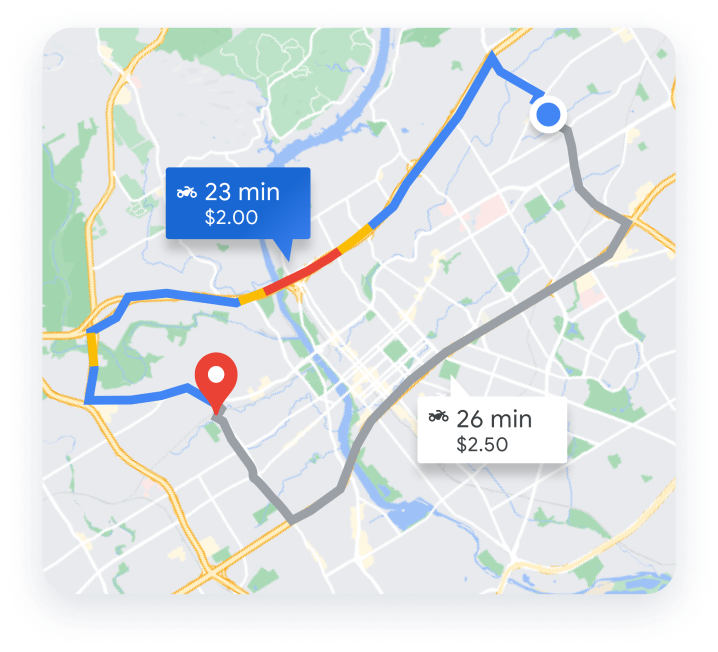
Google Maps shows real-time traffic updates. Check the traffic to avoid delays. Look at road conditions to stay safe.
Step 6: Save And Share Your Route
Click on the “Save” button. You can also share your route with friends. This way, everyone knows the plan.
Tips for a Successful Road Trip
Here are some tips to make your road trip even better.
Tip 1: Pack Smart
Bring only what you need. Make a checklist. Don’t forget snacks, water, and a first aid kit.
Tip 2: Take Breaks
Driving for long hours can be tiring. Take breaks every couple of hours. Stretch your legs and rest.
Tip 3: Stay Safe
Always wear your seatbelt. Follow traffic rules. Keep an eye on the weather.
Tip 4: Have Fun
Enjoy the journey. Take lots of pictures. Make memories with your friends and family.
Sample Road Trip Plan
Here’s a sample plan for a road trip from Los Angeles to San Francisco.
| Stop | Distance | Time | Notes |
|---|---|---|---|
| Los Angeles | 0 miles | 0 hours | Starting Point |
| Santa Barbara | 95 miles | 2 hours | Visit the beach |
| San Luis Obispo | 95 miles | 2 hours | Lunch break |
| Monterey | 140 miles | 3 hours | Aquarium visit |
| San Francisco | 120 miles | 2 hours | Destination |
Using Google Maps Offline
You might not always have internet. Google Maps lets you download maps for offline use.
How To Download Maps:
- Open Google Maps
- Search for the area you need
- Click on the menu and select “Offline maps”
- Tap “Select your own map” and choose the area
- Click “Download”
Credit: mapsplatform.google.com
Frequently Asked Questions
How To Plan A Road Trip With Google Maps?
Google Maps helps plan routes, find attractions, and estimate travel times for a road trip.
Can Google Maps Calculate Road Trip Distance?
Yes, Google Maps calculates distances and provides directions for your entire road trip.
How To Add Stops On Google Maps?
Use the “Add Destination” feature to include multiple stops on your route.
Is Google Maps Good For Road Trips?
Google Maps offers real-time traffic updates, route planning, and points of interest, making it ideal for road trips.
Conclusion
Planning a road trip with Google Maps is easy and fun. Follow the steps and tips for a great adventure. Happy travels!
If you have questions, feel free to leave a comment. We would love to help you plan your next road trip.